
One-Tap Stamping
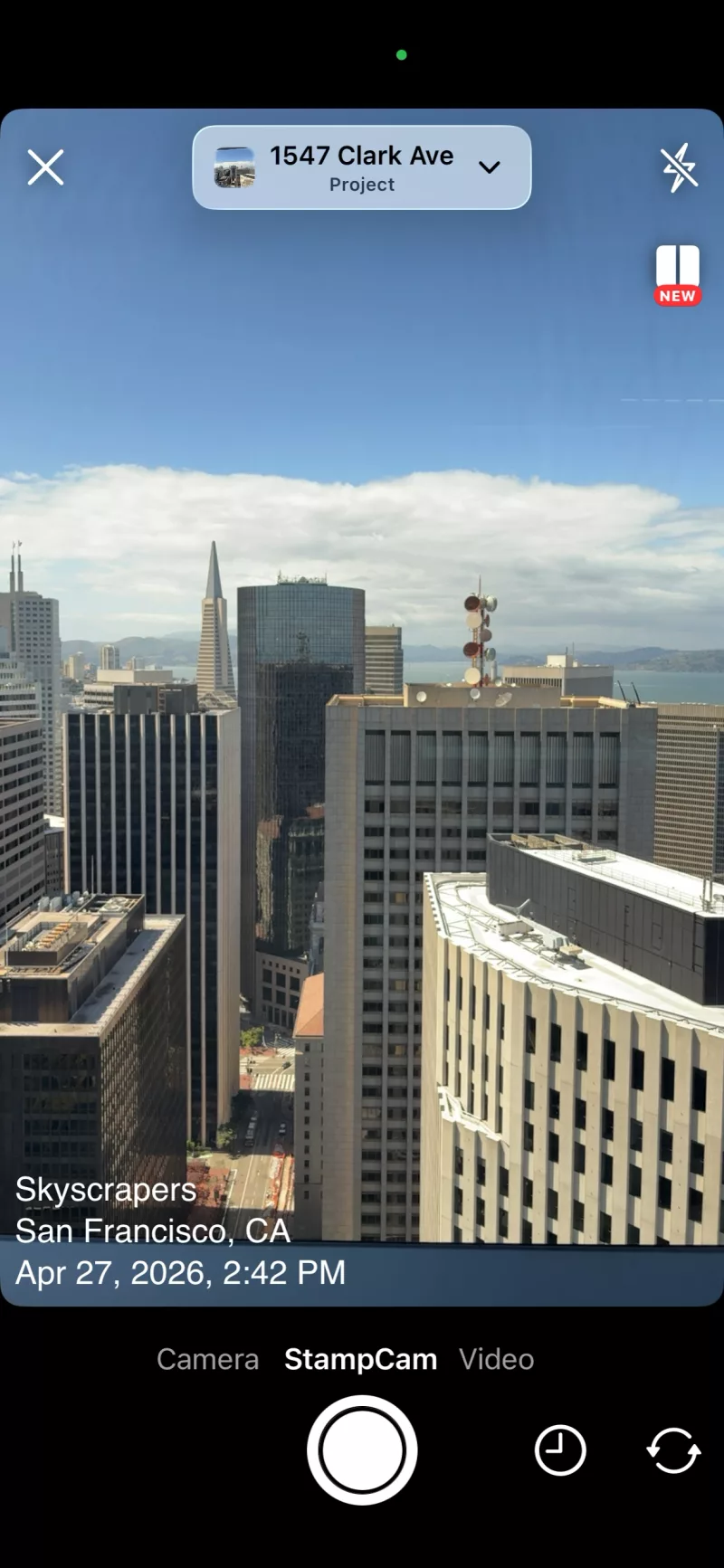
Add timestamps and dates to your photos instantly with a single tap.
Timestamp It adds clean, readable time, date, and location stamps to photos in seconds, so teams keep project records clear and defensible.

Jan 14, 2026 · 08:42 AM
37.78981, -122.39930
Trusted by construction workers, real estate agents, investigators, property managers, and professionals worldwide.
Add timestamps and dates to your photos instantly with a single tap.
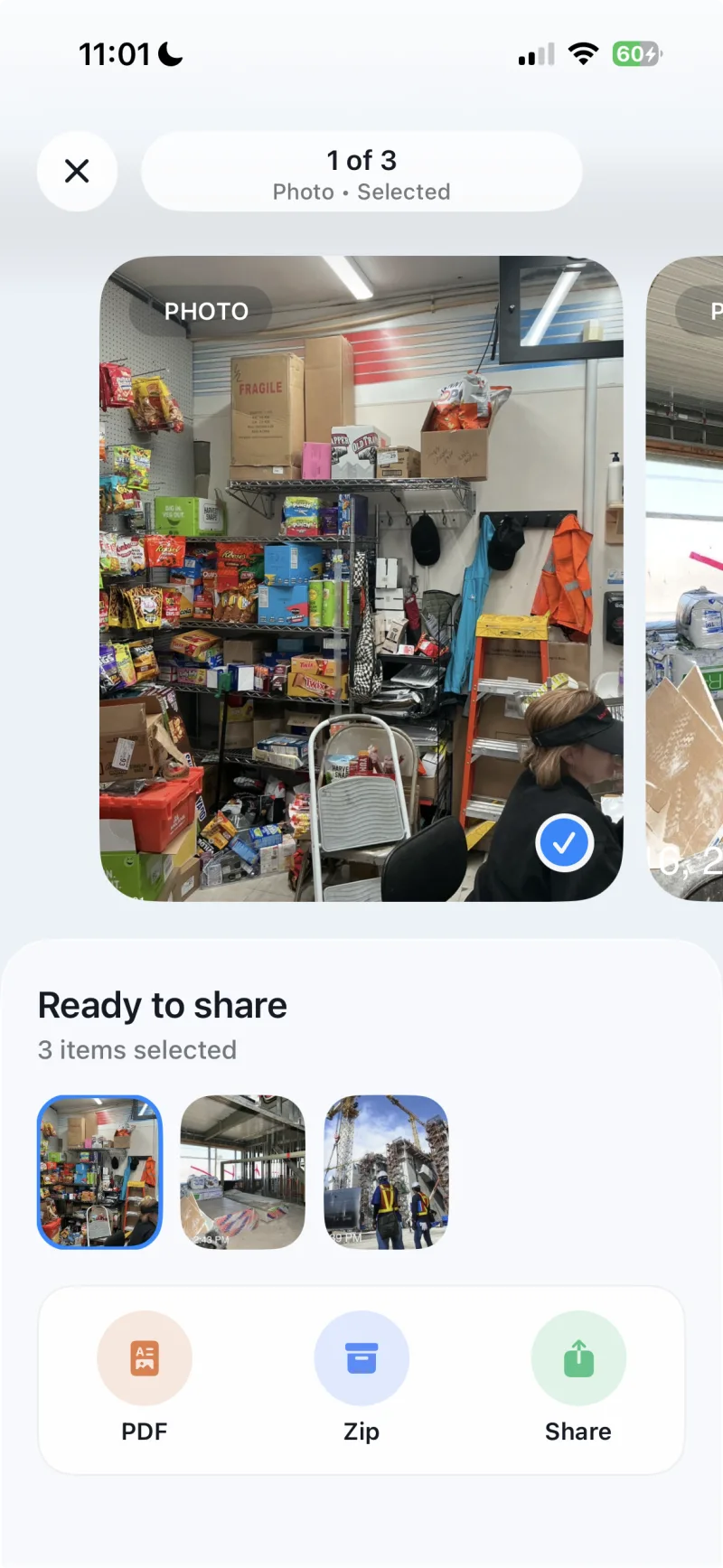
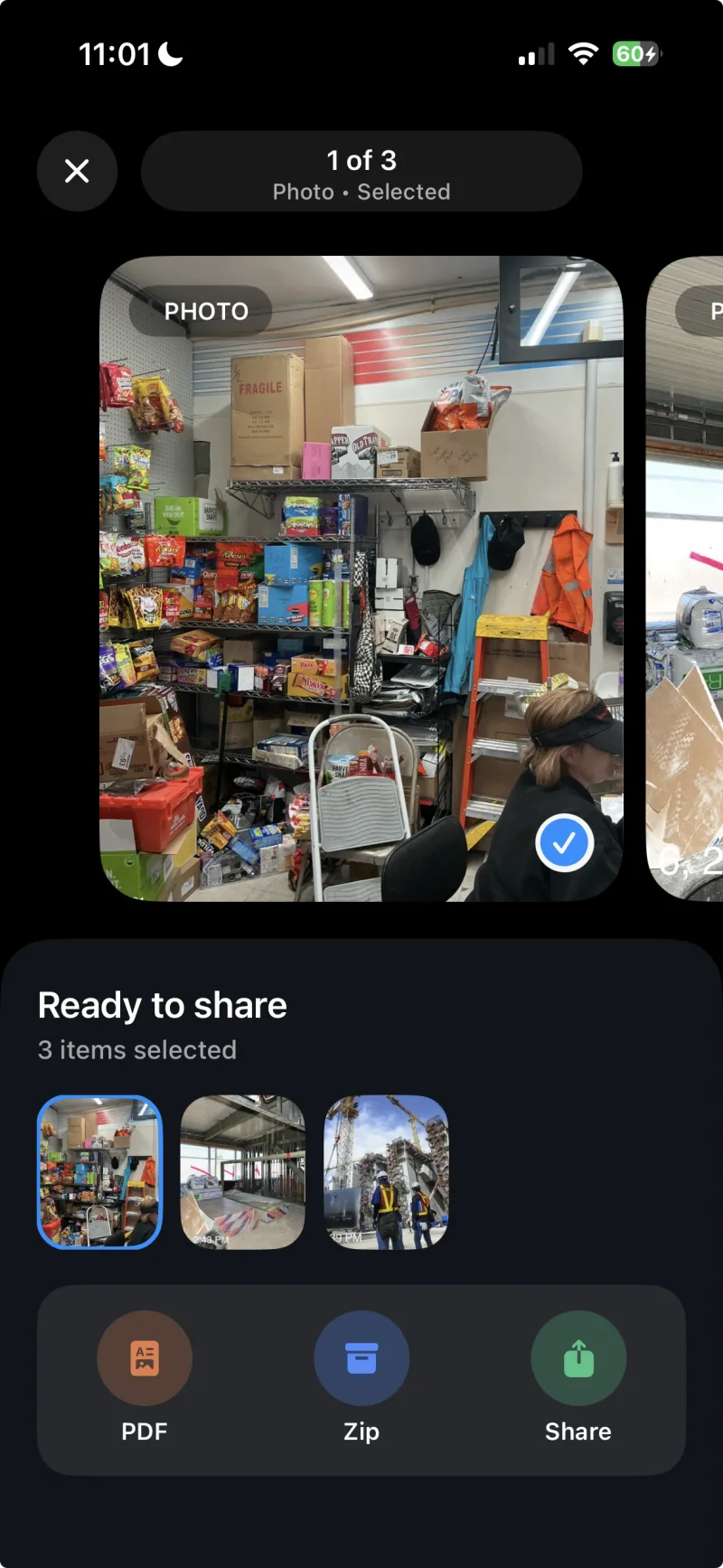
Stamp multiple photos at once. Perfect for documenting projects efficiently.
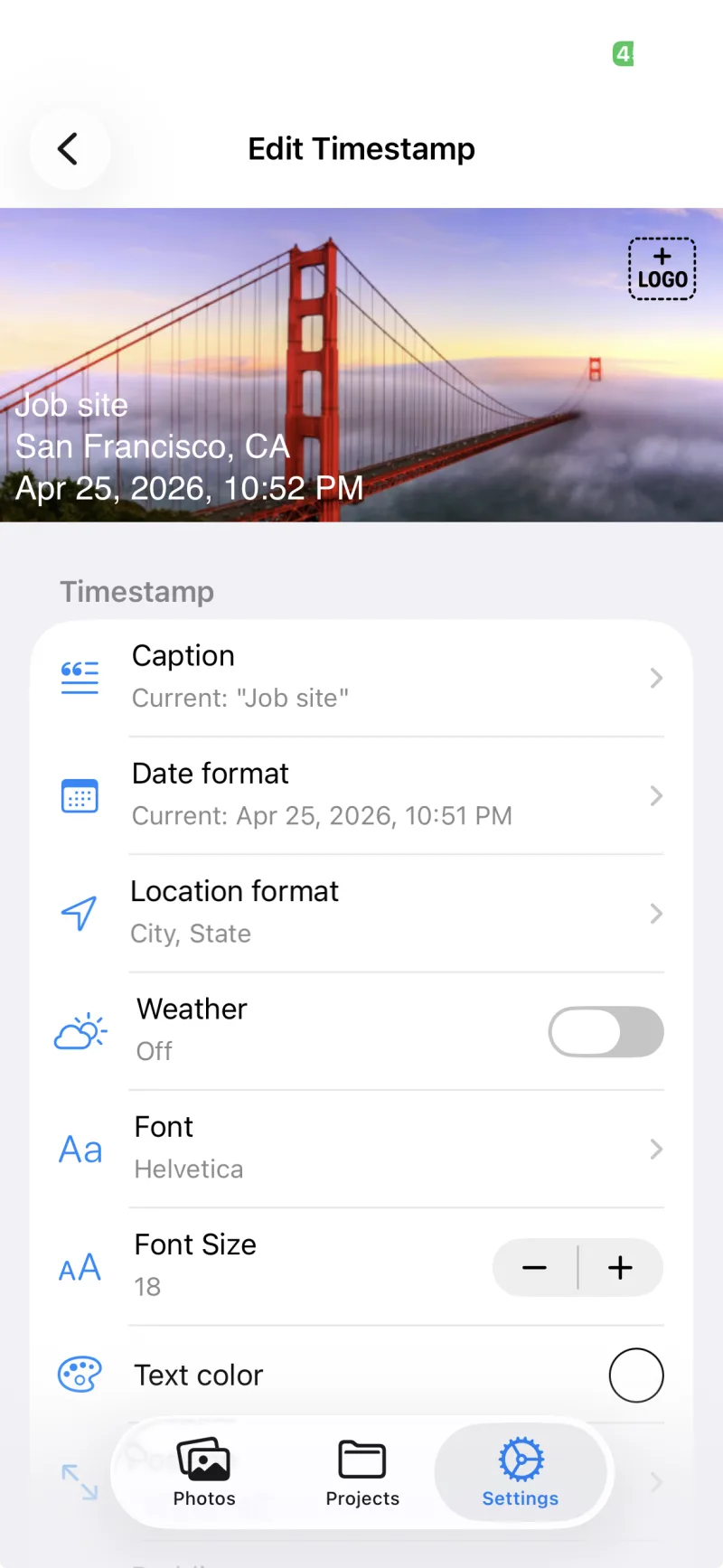
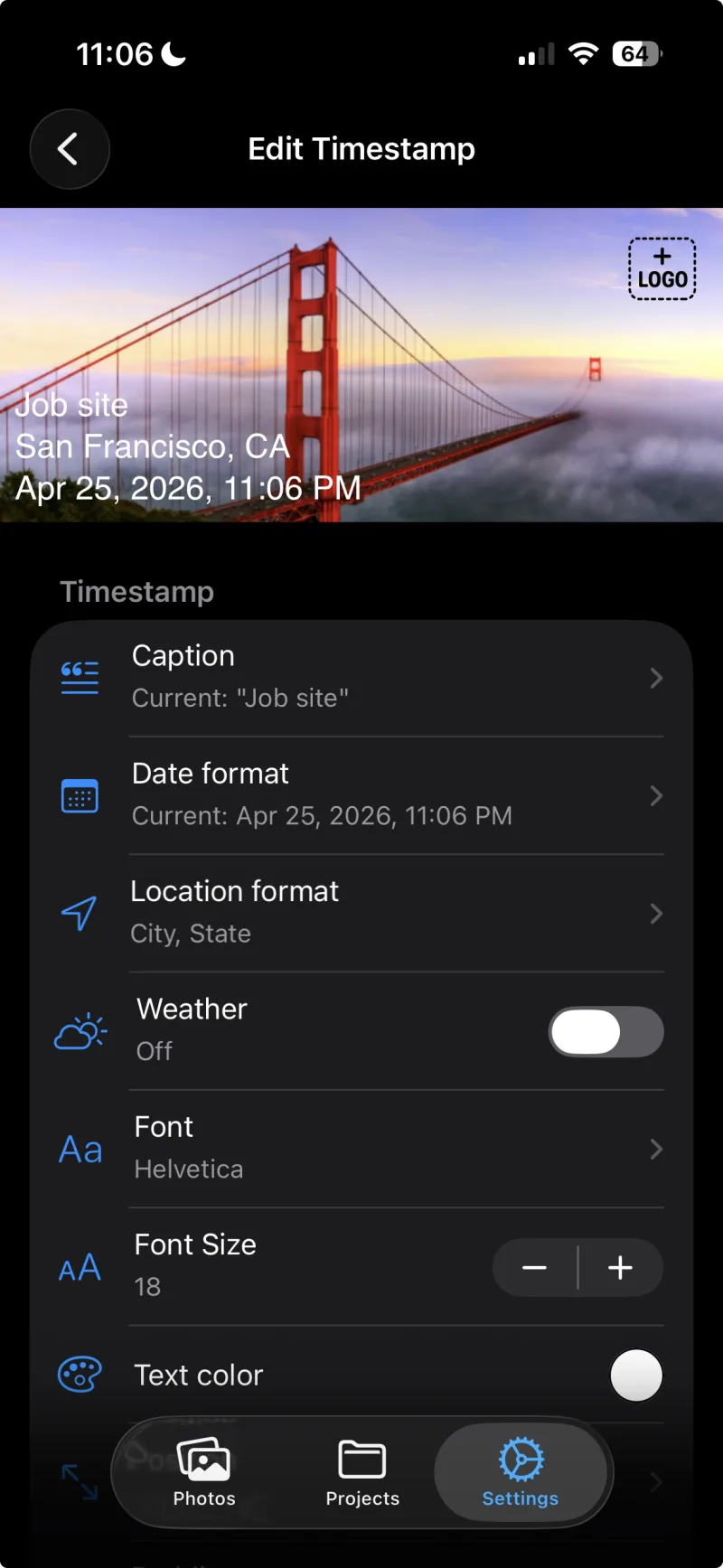
Choose fonts, colors, positions, and date formats that match your style.
Add GPS coordinates or location names to geo-tag your photos.
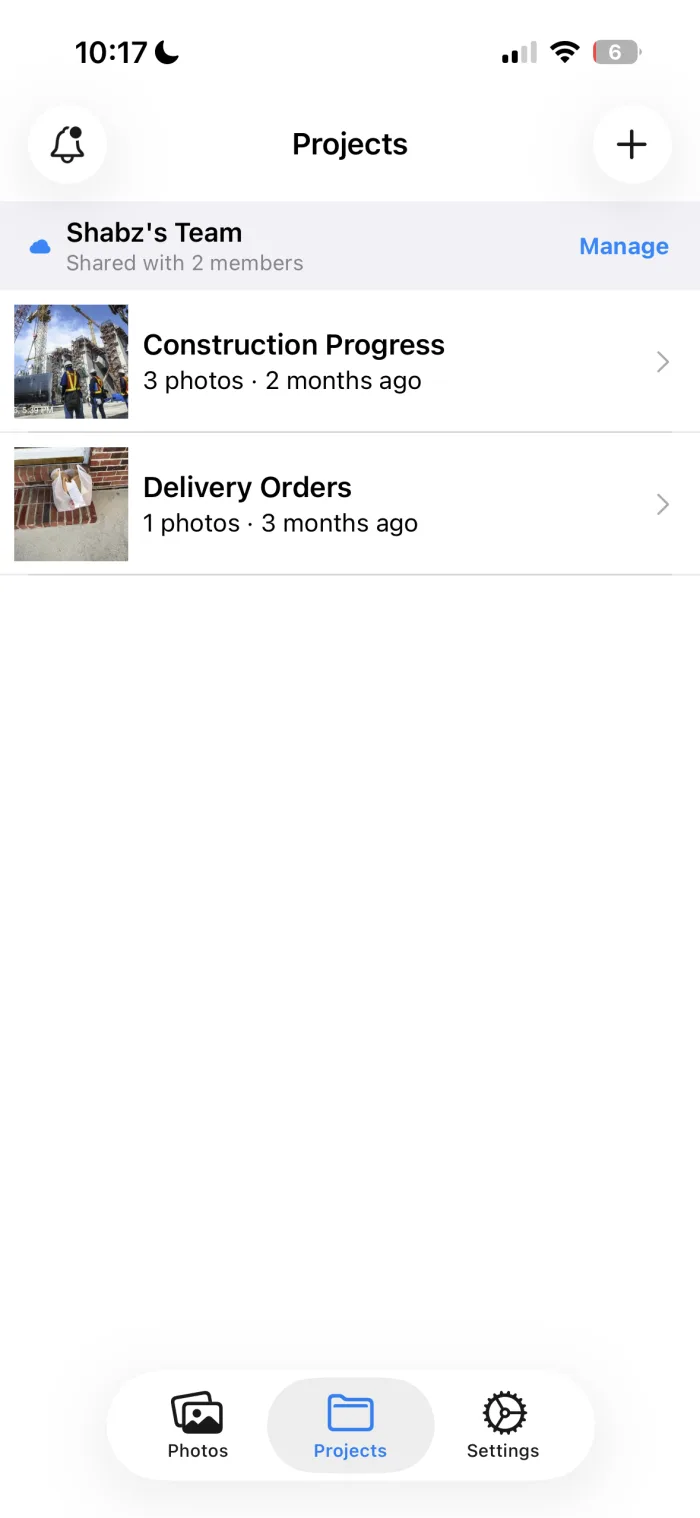
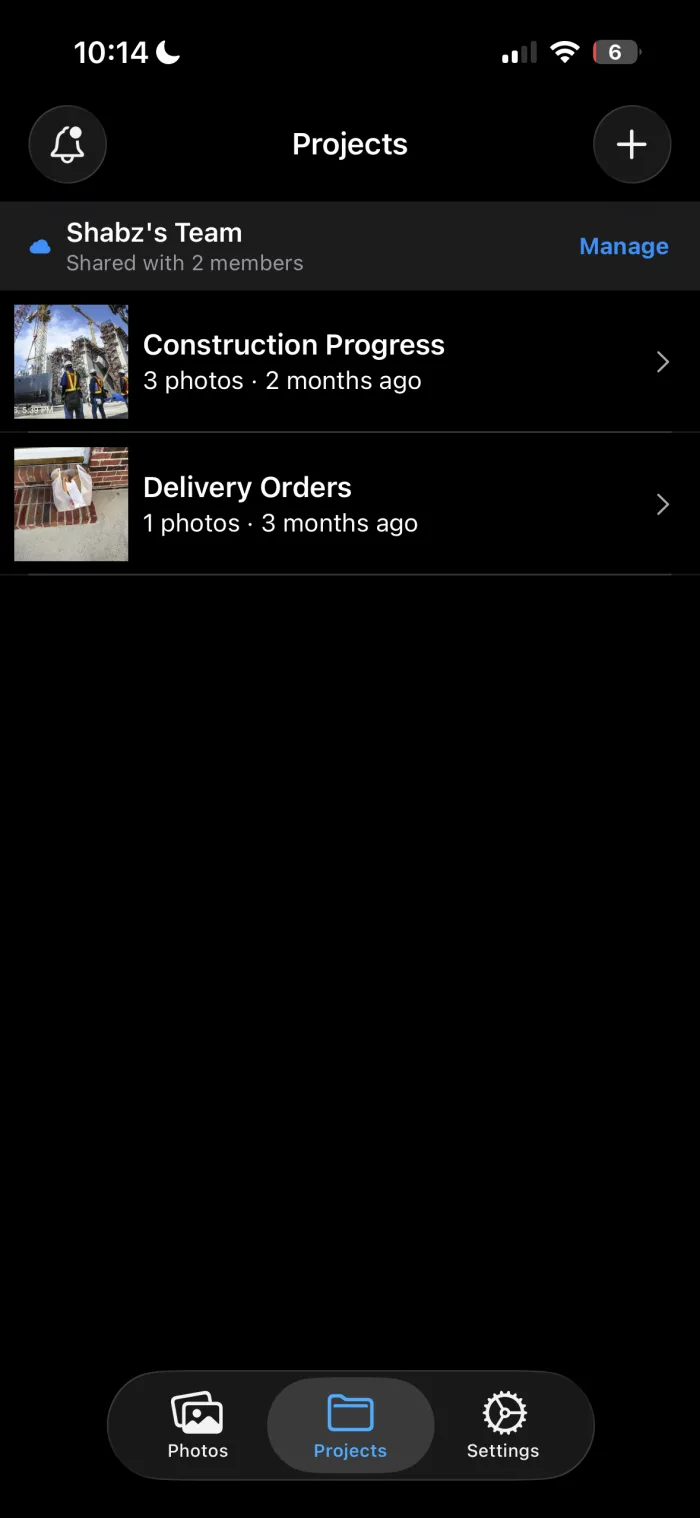
Keep projects synced across all your devices with optional, encrypted cloud backup.
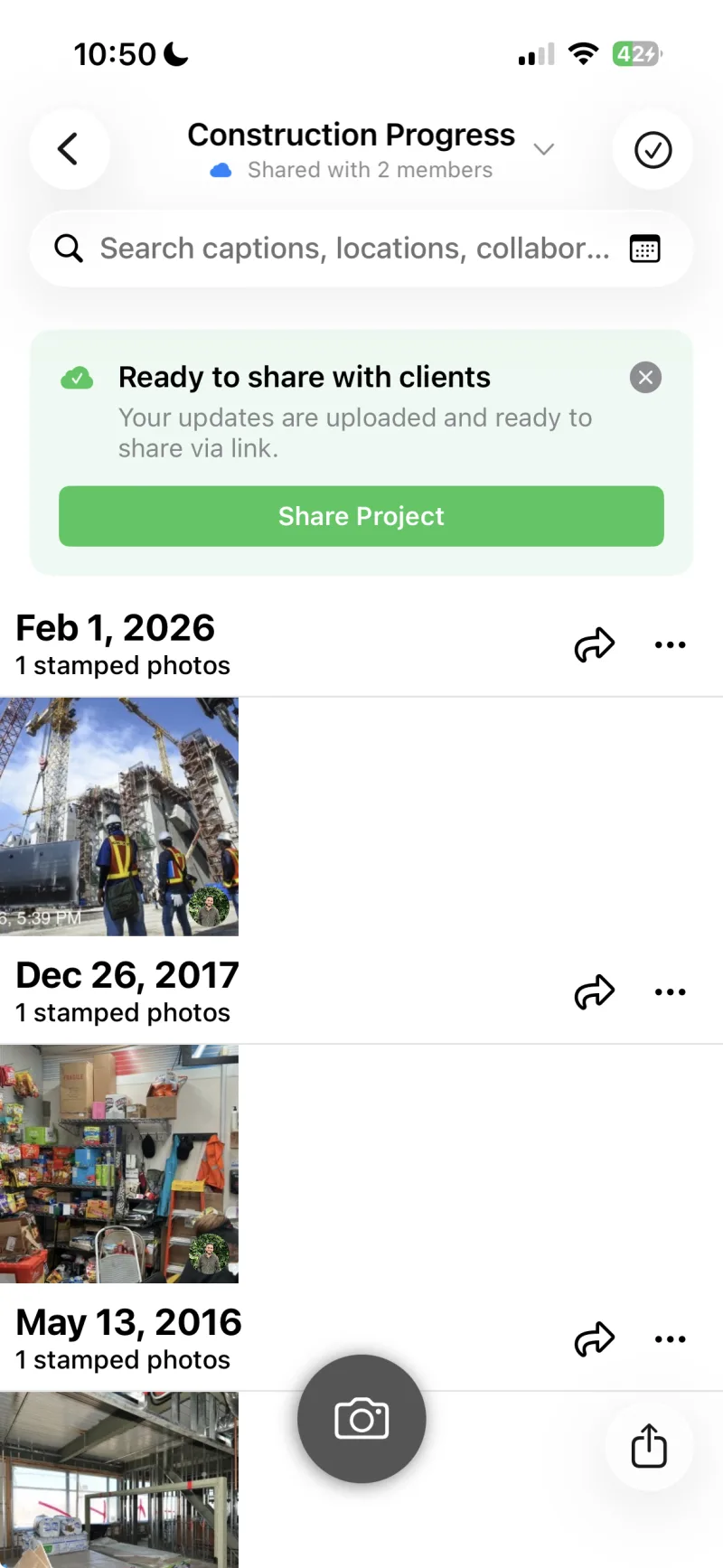
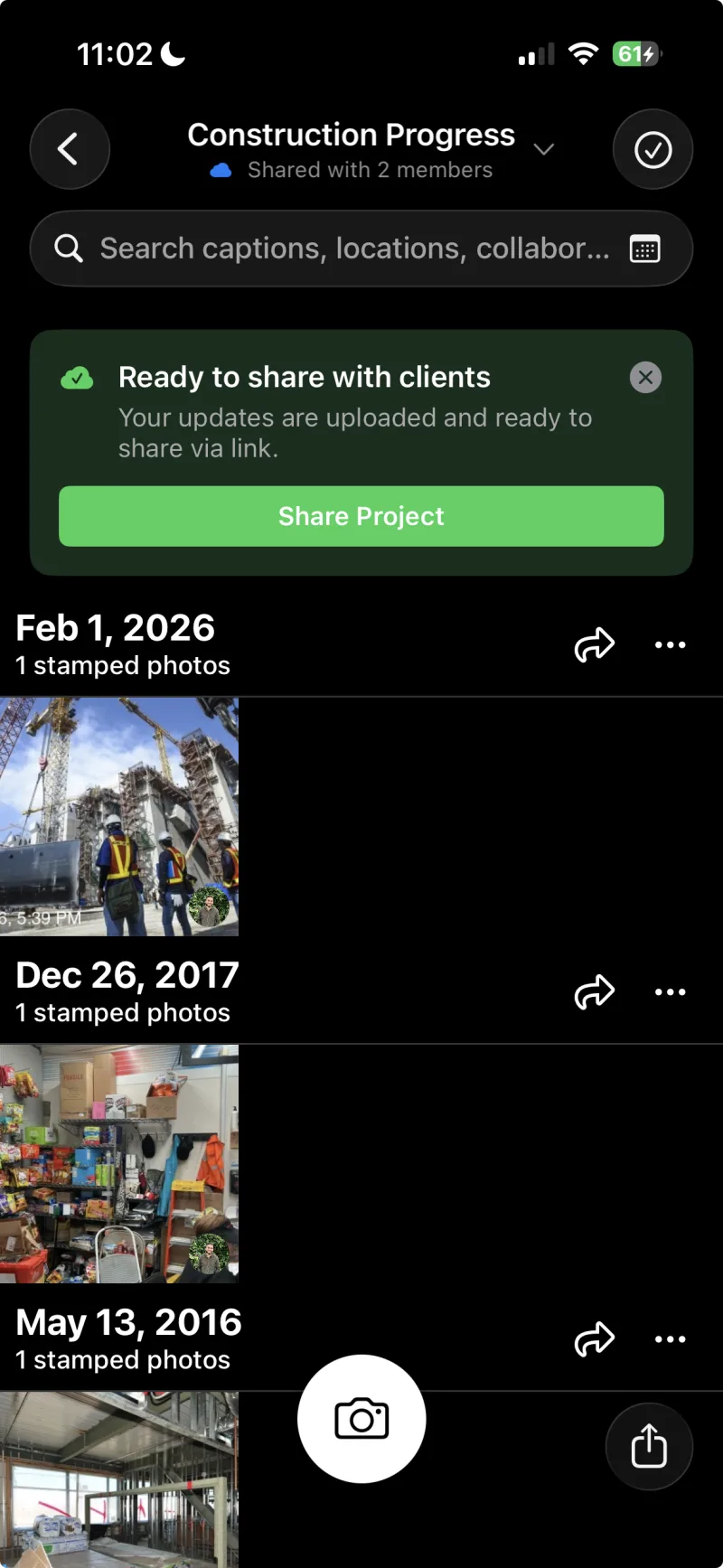
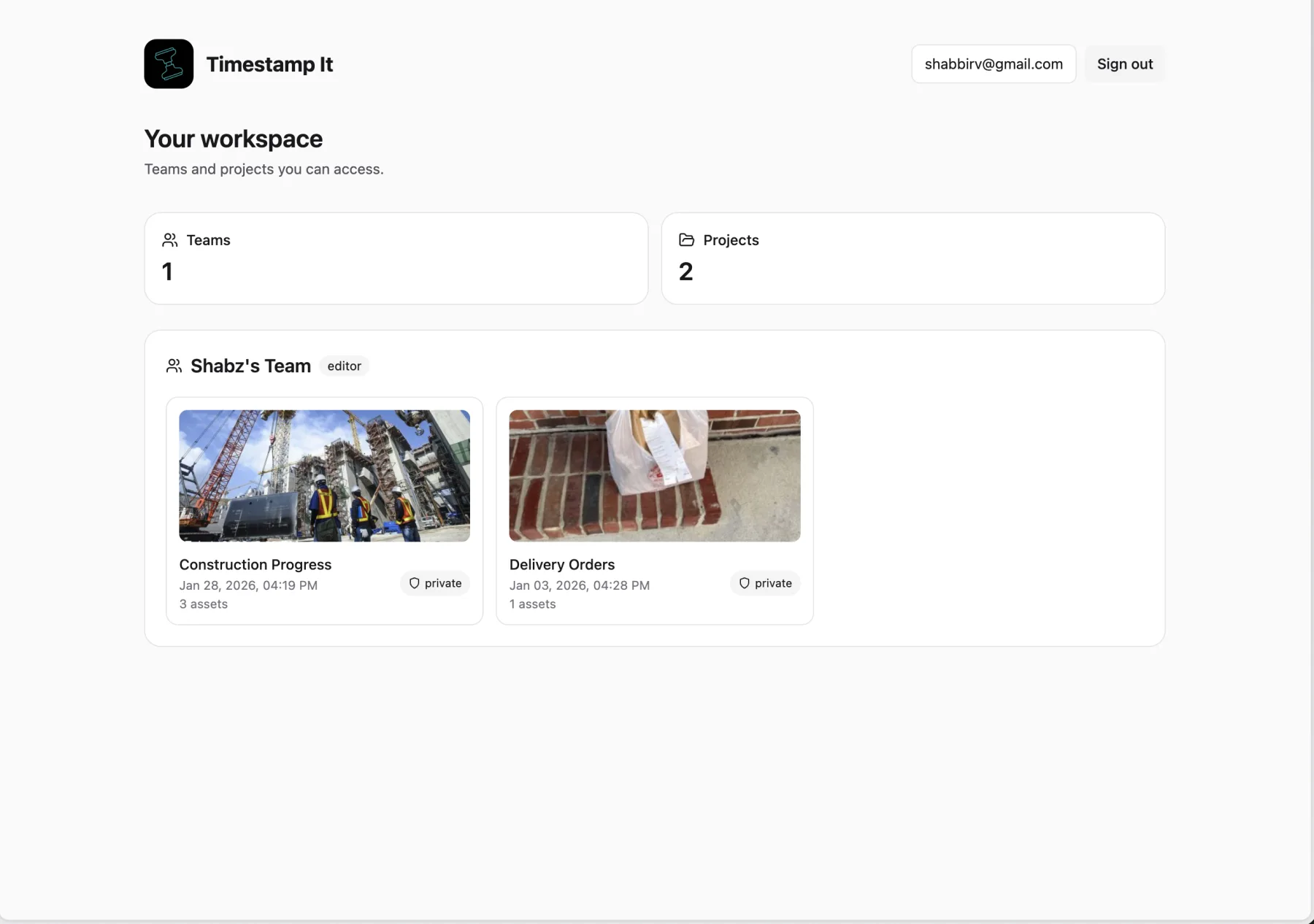
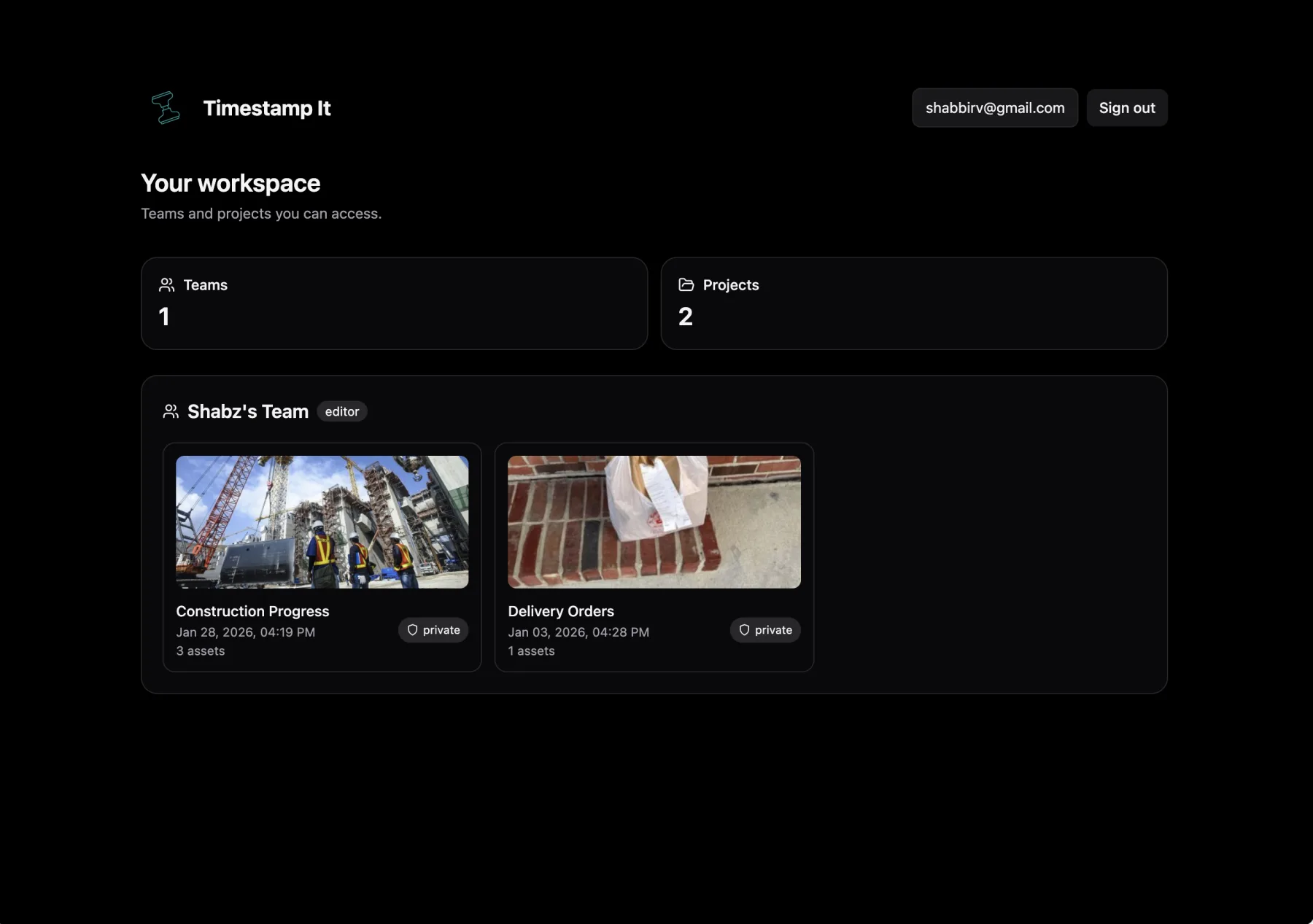
Share projects with teammates using invite links and collaborate in real time.
Roll out photo documentation across your crew in minutes — no training required.
Onboard your teamDesigned for fast evidence capture and fast handoff. No hunting through settings.


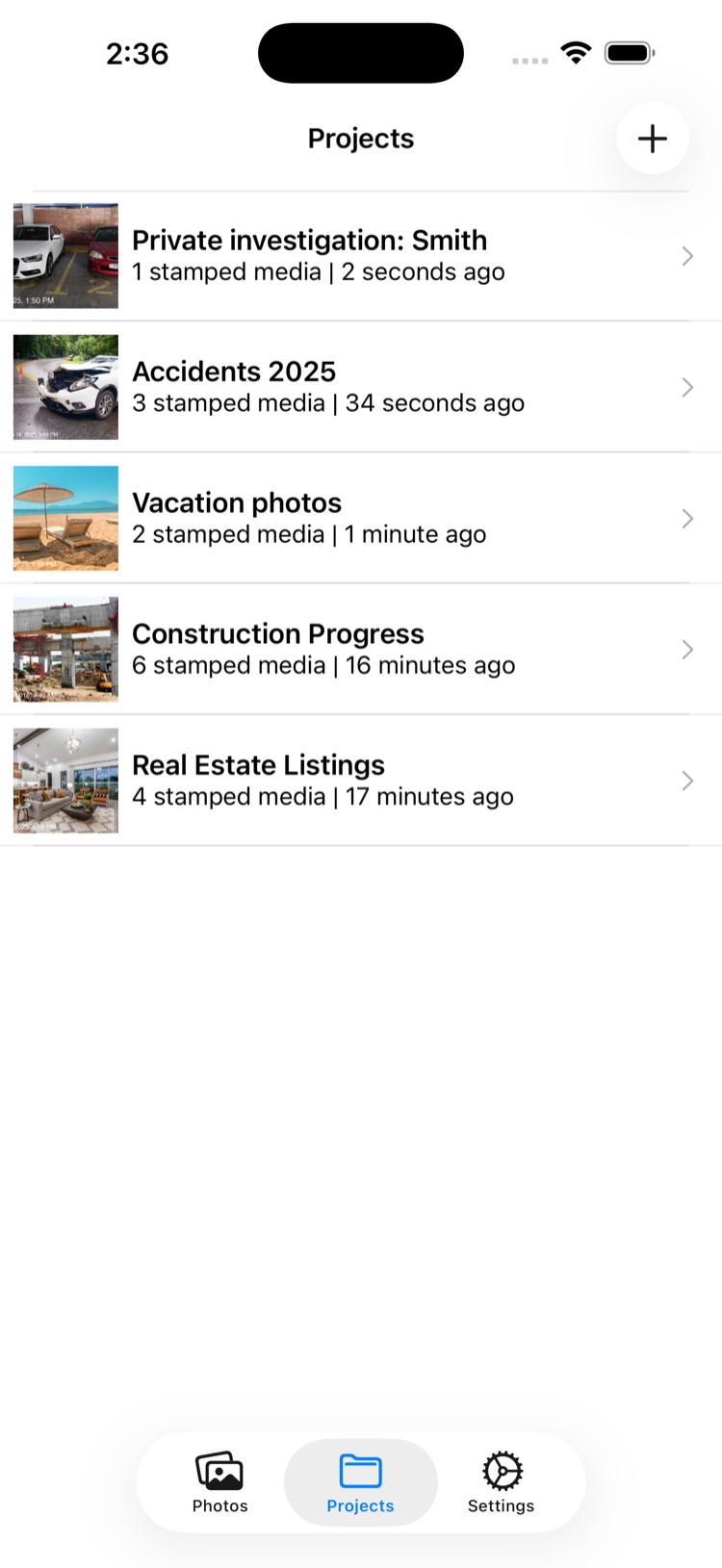
Construction, private investigator, realtor, etc.

Edit the style + add a logo or watermark.


Join thousands of users who trust Timestamp It for their photo documentation needs.
Document project progress with accurate timestamps. Perfect for job sites, inspections, and before/after comparisons.
Create time-stamped evidence that holds up. Add locations and captions for comprehensive documentation.
Document property conditions, showings, and listing photos with professional timestamps.
Track unit conditions, maintenance work, and move-in/move-out inspections with verifiable timestamps.
"This App works just fine for me. Have used it once a week for 3 years. One issue I had was resolved right away by Customer Service."— Outfall dude
"I rarely buy apps but I use this all the time with my real estate business. Does exactly what I need and nothing more. Super simple!"— Moji Broker
"Downloaded in seconds. Asked which photos in my roll to add stamp to selected photos while preserving originals. Free. So what about ads who cares. Thank you!!"— Body777
Straight answers about stamping photos so you can prove when a job was done and show where it took place, pulled from the same help we ship inside the app.
Tap the Camera tab to take a new photo or choose existing photos from your library. Each photo is automatically overlaid with the date, time, location, and any other details you've configured in Settings → Edit your Timestamp.
Go to Settings → Edit your Timestamp to change the font, text colour, date & time format, caption, and position of the stamp. Your changes apply to every photo you stamp from that point on.
Location stamps depend on location access in both Timestamp It and your device's Camera app. For Timestamp It on iPhone: open Settings → Privacy & Security → Location Services → Timestamp It, then choose While Using the App and turn on Precise Location. For Camera on iPhone: open Settings → Privacy & Security → Location Services → Camera, then choose While Using the App and turn on Precise Location. If you're using Android, open Settings → Apps → Timestamp It → Permissions → Location and allow access, then do the same for your Camera app. After updating permissions, fully close and reopen the app before taking or stamping photos.
In the photo chooser, tap and hold a photo to enter multi-select mode, then tap each photo you want to stamp. Tap the stamp button to apply your overlay to all selected photos in one step.
A project groups related stamped photos and videos together, for example a job site inspection, a construction progress log, or an event. Every stamped photo belongs to a project so you can find it later.
Open a project, then tap Manage Project in the banner or tap the project name in the navigation bar. Toggle Share Link on to generate a public URL that lets anyone view the project in read-only mode in a browser. Set the project to Private to restrict access to project members only.
Tap the + button in the Projects tab, then choose a team from the Team picker or tap 'Create Team…'. Enter a team name, optionally add members by email right away, and tap Create. You become the team Owner.
Team projects sync automatically in the background. When you add photos to a team project they upload to the cloud, and your teammates see them the next time their app refreshes. A cloud icon on the project card shows the sync status.
Go to Settings → Sign In or Create Account. You can sign in with Apple, Google, or a magic link sent to your email. An account is free and required to create teams and sync projects across devices.
Pro unlocks all fonts, unlimited stamping, cloud backup, team collaboration, and more. Go to Settings → Upgrade to Timestamp It Pro to see the current subscription options.
Join over 700,000 users. Download Timestamp It and never wonder when a photo was taken again.